Updated: July 21st, 2020
Today I was setting up a new machine (running OpenSUSE 12.1, but it's not really important), and after switching the network configuration from DHCP to static IP, lost all connectivity, in and out. /etc/init.d/network restart seemed to list the right IP, yet I was getting
"unknown host"
and
"Network is unreachable"
errors while pinging. I double and triple checked all the settings – DNS and gateway were set up right. I even rebooted, but nothing worked.
Then I vaguely remembered that I ran into the same issue a few years prior and also spent hours trying to figure out what was going wrong. The solution was so incredibly simple that my geek cred should have been docked 10 points. But …
Updated: July 21st, 2020
Today, I was looking for a quick way to see HTTP response codes of a bunch of urls. Naturally, I turned to the curl command, which I would usually use like this:
curl -IL "URL" |
This command would send a HEAD request (-I), follow through all redirects (-L), and display some useful information in the end. Most of the time it's ideal:
curl -IL "http://www.google.com" HTTP/1.1 200 OK Date: Fri, 11 Jun 2010 03:58:55 GMT Expires: -1 Cache-Control: private, max-age=0 Content-Type: text/html; charset=ISO-8859-1 Server: gws X-XSS-Protection: 1; mode=block Transfer-Encoding: chunked |
HTTP/1.1 200 OK
Date: Fri, 11 Jun 2010 03:58:55 GMT
Expires: -1
Cache-Control:
…
 ExpanDrive (formerly SFTPDrive) is a very handy Windows and Mac application that lets you take any SSH connection and mount it as a local drive. It saves me countless annoyances because I don't have to use a proprietary sftp uploader – in fact, I can simply open any file with my favorite editor, directly on the newly mounted drive.
The Problem
The problem with ExpandDrive is – it's quite simplistic. So simplistic that it doesn't offer an easy way to export its drive list and the associated settings. Because of that, you will have to enter all the drives all over again in case you reinstall Windows or want to replicate them to another computer.
Of course, there is a …
Impressions From The StackOverflow's DevDays Conference In San Francisco
 I just got back from the StackOverflow's DevDays conference in the rainy (at least today) San Francisco.
I was really glad to see Joel Spolsky, Jeff Atwood, and the whole StackOverflow team in person, as well as listen to great talks in the following topics:
9:00 – 9:50 Joel Spolsky Opening Keynote
9:50 – 10:45 Mark Harrison Python
11:00 – 11:55 Rory Blyth iPhone
11:55 – 12:25 Joel Spolsky Fogbugz
13:30 – 14:25 Scott Hanselman ASP.NET-MVC
14:25 – 14:45 Jeff Atwood Stack Overflow
14:45 – 15:40 Daniel Rocha Qt
16:10 – 17:05 James Yum Android
17:05 – 18:00 Yehuda Katz jQuery
My own favorite topics were in the following order of fun/usefulness level:
Updated: July 29th, 2021
Introduction
 Screen is awesome. Once you become comfortable navigating around it, you start using it ALL the time. No more dropped sessions, no having 10 Putty windows open at the same time, no more nohup.
However, with default screen settings I've always felt a bit lost and out of place, mostly because there was no "taskbar" with a bird's eye view of all windows. Pressing ctrl-a, " really does get annoying fast (that's the command that brings up the window selector – screenshot below).
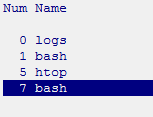
So instead I modded my screen to have a "taskbar" which sits at the bottom of screen and adds:
Updated: July 30th, 2021
The Problem
I am throwing up a quick post about a relatively cryptic error that Solr started throwing the other day here at Plaxo. After happily running for a few days, I suddenly started getting pages about failed Solr indexing.
Upon closer examination, I saw the following repeatedly in the log file:
catalina.2009-09-18.log:SEVERE: java.io.IOException: directory 'DATADIR/index' exists and is a directory, but cannot be listed: list() returned null |
I tried to see if sending an OPTIMIZE command would help but the server returned the same response.
Digging Deeper
The reason was these errors was quite simple – Solr was running …
How To Properly Set SVN svn:externals Property In SVN Command Line
Updated: October 6th, 2009
Introduction
Every time I have to deal with svn:externals in SVN, I forget the command line syntax. Every single damn time. Normally, I use SVN GUI clients, such as SmartSVN, which make it very simple to add an svn:externals property. But for command line, it always takes looking at 25 different sites on google, which are all incredibly unhelpful for this question for some reason. Trying "svn help propset" on the command line was bloated and equally useless.
So this time I needed to write it down and make sure everyone who needed help with svn:externals would find exactly what they need here. I hope this page will soon come up on top of all the unhelpful results on …
How To Make Your Site Lightning Fast* By Compressing (deflate/gzip) Your HTML, Javascript, CSS, XML, etc In Apache
Updated: June 10th, 2009
* Lightning Fast is a blatant exaggeration. Got you to look though, didn't it?
Introduction
Whether you are a web developer or a self-hosting business owner, the only excuse for not activating compression capabilities of your web server can be that you didn't know about it. And now that you are reading this, there is no excuse left at all.
Here is how big a single page of this blog was before compression was enabled on CSS and Javascript files (computed by YSlow):

And here it is after compression:

As you see, the difference is quite substantial – almost 30% savings.
Compressing your HTML, XML, Javascript, CSS, etc pages will mean less data transferred between the server and the …
Updated: October 6th, 2009
No matter what programming language you use, there comes a time when you need to search for a file somewhere on the file system. Here, I want to talk about accomplishing this task in Perl. There are many ways of doing so, most of them boring, but I want to discuss the fun and elegant way – using File::Find::Rule.
Let me briefly discuss some of the other methods first.
Limited
Using glob() (or <>, TODO verify) you can find files in a single directory, using only the limited shell wildcard support. For example,
1 |
my @files = glob("tmp*"); |
…
Updated: June 24th, 2020
Introduction
If you, like me, are building or thinking of implementing a MySQL-powered application that has any need for prioritizing selecting certain data over other data, this article is for you.
Example
As a real world example, consider a queue-like video processing system. Your application receives new videos and processes them. The volume of incoming videos can at times be higher than the processing rate because the process is CPU bound, so occasionally a pretty long queue may form. You will try to process them as fast as you can but…
…
Updated: June 9th, 2009
Problem
While writing a 1093985th Perl script the other day I was facing the following dilemma:
- Let’s say there is a local library, called TheUberLib.pm. It is so uber that most of my scripts, located all over the machine, include it.
- Now, let’s also say that there’s an even more uberly important binary called run_me_now_or_you_will_die but the only way to find it is by using a relative path to the aforementioned TheUberLib.pm, for example ../bin (RELATIVE TO TheUberLib.pm).
- I don’t want to hardcode the path to run_me_now_or_you_will_die because it can be different on multiple machines and the code wouldn’t be robust enough – all I know is that the path is relative to an included library.
So …
Updated: September 16th, 2012
Today I had to swap 2 columns in one of my MySQL tables. The task, which seems easily accomplishable by a temp variable, proved to be a bit harder to complete. But only just a bit.
Here are my findings:
-
The
UPDATE swap_test SET x=y, y=x;
approach doesn't work, as it'll just set both values to y.
PostgreSQL seems to handle this query differently, as it apparently uses the old values throughout the whole query. [Reference] -
Here's a method that uses a temporary variable. Thanks to Antony from the comments for the "IS NOT NULL" tweak. Without it, the query works unpredictably. See the table schema at the end of the post. This
…
Artem’s Top 10 Tech Predictions And Ideas For 2009 And Beyond
 Everyone and their mother are throwing out their predictions for 2009 nowadays, it’s a new fad. It’s like you’re not cool anymore if you don’t have twitter, a Mac, and a set of random predictions for the next 12 joyous months.
So I decided to throw in a few ideas of my own to be part of the cool crowd again (how much cooler can I be already, you might think, and I wouldn’t blame you).
Disclaimer (read it, tough guy)
What this post is:
Mastering The Linux Shell – Bash Shortcuts Explained (Now With Cheat Sheets)
Updated: July 30th, 2021
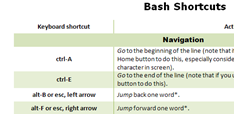 During my day-to-day activities, I use the Bash shell a lot. My #1 policy is to optimize the most frequently used activities as much as possible, so I’ve compiled these handy bash shortcuts and hints (tested in SecureCRT on Windows and Konsole on Linux). The article only touches on the default bash mode – emacs, not vi. If you haven’t specifically assigned your shell mode to vi (set –o vi), you’re almost certainly using the emacs mode. Learn these and your shell productivity will skyrocket, I guarantee it.
…
A Detailed Depiction Of The Job Interview Process At Google (by Peteris Krumins)
 Peteris Krumins is nothing short of a technical genius. Every single one of his blog posts is so detailed, one can write a book about it. He blogs about Linux, programming, and other tech stuff on his blog http://www.catonmat.net/.
A short while ago, Peteris posted his very thorough experience interviewing at Google. Needless to say, the level of detail is astounding. Unfortunately, he didn’t get the job but the post is very positive and informative. Here is the gist and a short excerpt:
 beer planet is a blog about technology, programming, computers, and geek life. It is run by Artem Russakovskii - a local San Francisco geek who is currently pursuing his own projects and regularly enjoys hacking Android, PHP, CSS, Javascript, AJAX, Perl, and regular expressions, working on Wordpress plugins and tools, tweaking MySQL queries and server settings, administering Linux machines, blogging, learning new things, and other geeky stuff.


