[Updated x3] Goodbye Outlook, I Don't Need You Anymore – Gmail Now Lets You Paste Images Directly From Clipboard
 There used to be a time when you couldn't imagine your life without Microsoft's Outlook – web email clients were pathetic and non-functional, Internet access was scarce, and access to certain advanced features was only possible with a desktop application like Outlook.
Then, Gmail arrived and exploded the whole notion of desktop email clients forever, almost overnight. It was fast, robust, logical, and integrated – many things Outlook still isn't to this day (Outlook 2010 + IMAP is pure hell).
Slowly, Google brought out more and more features that made the fine line between web and desktop emailing thinner and thinner, and today, it finally disappeared, at least for me.
The final nail in the coffin turned out to be …
My New Desktop Background On The iMac Running Window 7 – That's Right, It's Awesome
I got a new development machine at work – a 24" iMac. Since I am not an OSX fan at all, I immediately installed Windows 7 x64 on it and initiated a search for a fitting background image.
And then I found it:

Right click here and Save As to download the 1920×1200 version
And that's how you set up your iMac people.
Credit goes to Jonzy from DeviantArt….
Updated: July 30th, 2021
Introduction

In this review I'm going to take a look at a pair of 2010 thirtytwo Focus Boa snowboard boots that I picked up a few weeks ago, after spending a day demoing them in the snow at a resort in Tahoe.
Even though I am an avid snowboarder (I try to go to the snow almost every weekend during the winter), I haven't evaluated my gear in years. This season, however, I decided to take a look at my options with the snowboard boots.
The Upgrade
It was only after the shoelace on one of my 5 year old Salomon Dialogue boots snapped that I even considered checking out other boots. I was always *kind of* happy with …
Amazon Posts The Deal Of The Century: Ultimate Ears TripleFi 10 & 10vi Earphones – $99, Down From $399 – Amazing Value, Perfect For Mobile Phones
Updated: July 30th, 2021
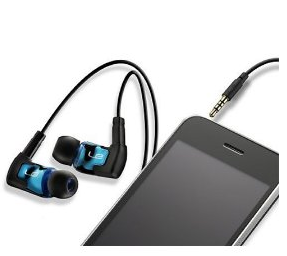 Today Amazon posted a Goldbox superdeal on the stunning Ultimate Ears TripleFi 10 And TripleFi 10vi earphones. The price drop is absolutely mind blowing – they now cost $99 instead of $400.
I've been watching these earphones for 3 years and I've never seen them drop to even $250. Even Black Friday couldn't even dream of a deal like this. After seeing today's deal, I'm upgrading from SuperFi 5 to TripleFi 10vi.
So why am I so excited?
Because:
- these earphones are some of the best you can buy, even at full price. I've owned their "younger brother" Ultimate Ears SuperFi 5 for the last 3 years (see my review of those) and I still can't stop
…
 When I visited Mozilla's offices about 6 months ago, I saw a mobile testing station which included about 20-30 different phones lounging around, with their chargers plugged in. I knew something serious was coming soon. There were rumors about Firefox for Mobile for a while but nothing to really show for it. That was then…
Today, however, we know a lot more. Firefox for Mobile, codenamed Fennec, is coming next month (see More Info below) and looks very promising.
Here is a recent video of the Firefox's mobile and design teams discussing and showing the features of Mobile Firefox:
Feature Highlights
For the busy folks, here are the highlights from the video:
HTC Hero Coming To Sprint October 11th! $179.99, Powerful, And Sexy. Here Is Why You Need To Own It
Updated: September 8th, 2009
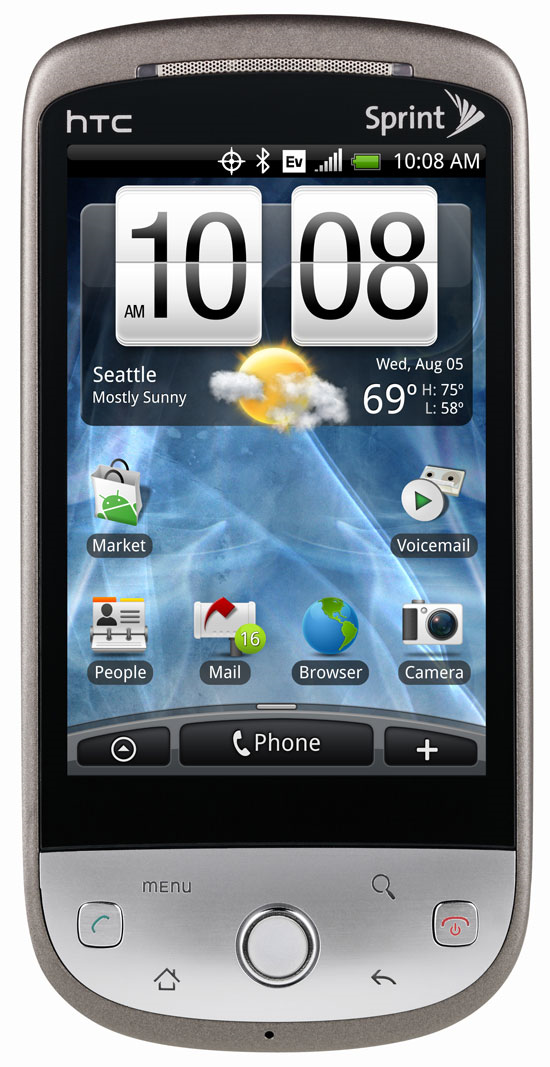 Well, it looks like the wait is over. I have been waiting for almost 5 years for a new phone that is good enough to make the switch from Samsung A900 (which has free tethering). Don't even get me started on the iPhone and its outrageous monopoly with AT&T. Android and the growing multitude of devices running it is, however, completely different business. Android offers unparallel freedom and I truly believe it will be the top phone OS within a few years as more and more Android phones are introduced to the market.
But where was I? I have been closely following Android news since its inception, then the introduction of the first phone – T-Mobile G1 (aka HTC Dream), …
2 Gmail Tricks I Bet You Didn't Know About
OK, maybe you did know them – just see for yourself.
Introduction
The tricks I am going to describe allow you to create unique gmail addresses that still hit your existing gmail inbox, without actually making new gmail accounts.
This can be useful in a variety of situations when you need to use multiple email addresses without having the pain of maintaining them, such as
- using unique emails while registering for the same service more than once (say, paypal)
- giving out a unique email address to see if you start getting spam to it later – that way you know exactly who to blame for it
- more generally, easily create email rules to sort incoming emails into folders, delete them,
…
Essential Firefox Extensions (Plugins, Add-Ons) And Tips – A Comprehensive Guide :: Part 1 :: Tips
Updated: June 10th, 2009
Introduction
In this article I’m going to discuss a number of useful Firefox extensions and tips. This list is not a “COMPLETE GUIDE TO FIREFOX!!!111!” but a collection of some, albeit many, extensions and techniques I find useful, with detailed descriptions and illustrations. I try to make my reviews as personal as possible and express my own points of view, so I will not be using any boring official descriptions altogether. Short, concise, and useful – that is my goal.
Right now I use 53 extensions in total. If you think that’s a lot, you might be right. However, because Firefox is so mature and new extensions come out every day, it is not as crazy of a number …
Updated: October 6th, 2009
No matter what programming language you use, there comes a time when you need to search for a file somewhere on the file system. Here, I want to talk about accomplishing this task in Perl. There are many ways of doing so, most of them boring, but I want to discuss the fun and elegant way – using File::Find::Rule.
Let me briefly discuss some of the other methods first.
Limited
Using glob() (or <>, TODO verify) you can find files in a single directory, using only the limited shell wildcard support. For example,
1 |
my @files = glob("tmp*"); |
…
Updated: September 16th, 2012
Recently I read an article on the Six Revisions blog that discussed 10 seemingly simple improvements to the twitter interface. They included such things as nick autocomplete, mentions, groups, and more.
You could only dream about such twitter improvements… that is until you use the Troys Twitter script. Just perform the following steps and you will have the features I describe in this article. Here we go:
- Install Firefox (you already have that, right?)
- Install the Firefox greasemonkey extension
- Install the Troys Twitter script
…
Updated: March 10th, 2009
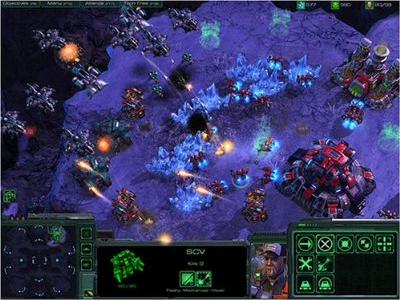 I could not be more excited about the upcoming Starcraft 2. Announced in 2008, a whopping 10 years after the first Starcraft release, the news sent shockwaves through millions of Starcraft fans, myself included.
I’ve been watching and anxiously awaiting the release and, while the final release date is unknown at this point (I'll update the post when it is announced), I’ve assembled a list of current Starcraft 2 facts, summarized as bullet points.
But before I get into that, here’s the most important part you need to know to be able to get your hands on the game right after it’s released and play online ($49):
'Carwars' by Funeral Party
I don't simply post videos and links anymore but I had to this time: can't stop listening to this song. Thanks @mkfrantz.
'Carwars' by Funeral Party
…
Artem’s Top 10 Tech Predictions And Ideas For 2009 And Beyond
 Everyone and their mother are throwing out their predictions for 2009 nowadays, it’s a new fad. It’s like you’re not cool anymore if you don’t have twitter, a Mac, and a set of random predictions for the next 12 joyous months.
So I decided to throw in a few ideas of my own to be part of the cool crowd again (how much cooler can I be already, you might think, and I wouldn’t blame you).
Disclaimer (read it, tough guy)
What this post is:
Updated: July 30th, 2021
 Crash is one of the new shows I’m into and Panic is one of the most likeable and original characters on the show. I really think he’s going to be back after this show – it’s his breakthrough performance.
So, in, I think, episode 4 Panic (Jocko’s character) goes to the studio and raps for the first time. What comes out is quite amazing, I recommend you watch that episode for a more complete experience. Otherwise, proceed to the MP3 that I got directly off Jocko’s myspace page.
You can play it right on this page (Edit: download link removed, per Jocko's request in the comments) or support Jocko by buying his album off Amazon for only $0.99 …
 beer planet is a blog about technology, programming, computers, and geek life. It is run by Artem Russakovskii - a local San Francisco geek who is currently pursuing his own projects and regularly enjoys hacking Android, PHP, CSS, Javascript, AJAX, Perl, and regular expressions, working on Wordpress plugins and tools, tweaking MySQL queries and server settings, administering Linux machines, blogging, learning new things, and other geeky stuff.


