WTF

I don't know about you, but I'm incredibly sick of Facebook quizzes. Yeah, shit like this which occupies 90% of my news feed:

image

And to make matters worse, Facebook provides no means to block these quizzes and rid your profile of them forever. The only thing you can do is block each individual quiz. But just like weeds in your backyard, when you block one, three more rise up in its place. I know I am not alone here - there are literally billions of people searching for a solution to the plague.

So, what does the tech community do when it is not happy?

  1. Runs to mommy, crying.
  2. Drinks heavily, passes out, and comes to work with a keyboard faceprint, dressed as Koolaid.
  3. Ignores the problem and lives with it (pussy).
  4. Takes the matters into its own hands and develops a solution.

The correct answers are:

1. image 2. image and 4. image

Enter a true geek at heart by the name of Steeev with his Facebook Purity greasemonkey script that was created with the sole purpose of BLOCKING THE FUCKING QUIZZES. Go Steeve Steeev!

Solution

Installation is as easy as 1, 2, 3:

  1. Install Firefox (you already have that, right?)
  2. Install the Firefox greasemonkey extension
  3. Install the Facebook Purity script

That's it. Now go to your Facebook page (make sure you access it via www.facebook.com or www.new.facebook.com and not YOURUNIVERSITY.facebook.com (like ucdavis.facebook.com)).

Check it out - all quizzes are gone, the script even tells you how many quizzes were blocked:

image

Pure bliss. Rest quizless now, everyone.

 
  • Share/Save/Bookmark

Introduction

Welcome to part 2 of the Essential Firefox Extensions And Tips – A Comprehensive Guide series. In this article I’m going to describe a number of time saving pragmatic extensions that make me a better, faster, more efficient browser user (browserer?).

Pragmatic Extensions

All-in-One Gestures

All-in-One Gestures introduces customizable gestures for all kinds of actions. To perform a gesture, hold the right (by default) button and move the mouse in the specified direction, drawing the needed shape.

Btw, I believe Opera has gestures without any extensions, so Opera users should feel right at home using All-in-One Gestures.

image_thumb12

I use it mostly for 3 things: history back/forward and close tab (see below). Once you start using gestures, there is no going back.

image_thumb131

Download Statusbar

Download Statusbar is a handy extension that will show your downloads on a dedicated bar right above the status bar. It also adds a much needed “Delete from system” option to each download (why, Firefox, would you not give me an option to delete my downloads at all?). The Download Statusbar only shows up if there’s at least one download not dismissed yet. Double clicking on a finished file will both launch and remove it from the bar.

image_thumb1

image_thumb21[1]

OpenDownload

Running downloaded files without saving them is probably the only Internet Explorer feature I actually missed, until I found OpenDownload that is. This extension will give you an option to launch a download upon completion in addition to just saving it. I don’t have to worry about finding and deleting it from my system later as it goes to Firefox’s temporary folder.

image

Tab Mix Plus

This extension is very powerful and versatile. It controls various aspects of the browser tabs, windows, session, and mouse. Here are the settings I find useful:

  • open links that open in a new window in a new tab instead
  • open all javascript popups in tabs (I hate popups)
  • in fact, I enable the single window mode, in which all attempts to open a new window – by webpages or by you, including starting a new Firefox – will be redirected to a new tab
  • highlight unread tabs, which would italicize the tab titles of pages that had something new loaded since you last opened them
  • show progress meter on tabs
  • close tab button on all tabs (instead of a single one on the right side)
  • hide the new tab button that occupies extra space
  • customize the tab menu options

Here are some option screens:

image_thumb111 image_thumb3

image_thumb4[1] image_thumb5

image_thumb41

Google Toolbar

The google toolbar is historically sort of a must for me. It adds a couple of nice features on top of the default search box and frees the latter, so that I can set it to another search engine (IMDB in my case). With the amount of searching one does on google daily, the sheer number of clicks and keystrokes saved will be in the thousands. Daily. I search a lot, OK?

image_thumb6

In addition to providing an always present search bar, the toolbar carries a number of useful features, such as live search suggest, instant PageRank (unneeded if you install SEO Toolbar or SearchStatus), search Gmail and News buttons (and many others), clickable search terms good for in-page search, highlighting of the said terms, a simple autofill (though I use an irreplaceable AI Roboform instead), spell check (Firefox has one built-in now), translate (I use the gTranslate extension instead). All in all, one can do without google toolbar, depending on the needed functionality.

Don’t be afraid to install more toolbars than you need at any given time as you can always hide the ones you don’t want to see by right clicking the top menu bar:

image_thumb2[1]

Linkification

Linkification is a really pragmatic extension. It hyperlinks any url-looking strings that aren’t already hyperlinked. Take a look.

Linkification off: image_thumb8


image

Linkification on: image_thumb9[1]

image

The extension has a variety of options to satisfy even savvy users but I found that defaults work really well. If for some reason you want to momentarily turn off linkification, just tap the image_thumb9[1] button in the tray and the page will revert to its original form. By the way, if you really want to put it to the test, install it and head over to the comprehensive test case list.

Greasemonkey

Greasemonkey is the most versatile extension available for Firefox, as it’s essentially a whole framework for scripts that can manipulate any aspect of any page. Head over to userscripts.org and take a look at the myriads of scripts written and submitted by other Greasemonkey users.

image_thumb121

Still not clear what these can do? Let me list some that I use and their brief functionality:

  • Digg Top 10 Direct – automatically rewrites the digg’s top 10 links to go straight to the articles, instead of the digg comment page. Clicking on the digg icon still goes to the comments page though, and I think this is the ideal functionality.
  • Google Image Relinker – rewrites google image search urls to go directly to the corresponding images rather than the page they were found on.
  • YousableTubeFix – adds a small smart menu that dynamically shows which qualities a given youtube video is available in and automatically picks the best one, adds download links to the each quality (FLV and MP4), resizes the player to your liking, and a few other things. It is also quite customizable.

image_thumb13[1]

  • The now world famous Troy's Twitter Script that I reviewed a few week ago - it does everything Twitter currently doesn't, including Autocomplete, Auto URL Expansion, Auto URL Shortener, RT Button, Nested Replies, Inline Media Embed, Search Tabs, and more.
  • AideRSS Google Reader Integration – adds AideRSS feed rank to each entry in Google Reader, which allows eyeballing more important articles within a few seconds of seeing a feed. Also available as a separate extension for those not using Greasemonkey.

image_thumb14

Show MyIP

Show MyIP does exactly what it says: it displays your current IP. What I like about it is that it queries for it on demand, after you left or right click the icon. This approach avoids unnecessary queries going around.

image_thumb3[1] -> image_thumb4 -> image_thumb7[1]

What I don’t like about it is that there seems to be no way to copy this IP to clipboard. Ideally, a right click option would work great (that’s the way the next extension ShowIP does it). I left a comment about this fact on the extension’s page, so hopefully the author will implement it shortly.

Also, if an error occurs, be prepared for some good old German cursing:

image_thumb6[1]

ShowIP

ShowIP, in contrast to Show MyIP, actually displays the IP(s) of the website I’m currently on. It then allows me to copy it (or all of them) into clipboard and provides quick information links, such as whois, ip2country, and traceroute.

image_thumb8[1]

ShowIP is useful for both developers who want to know which dev server they’re currently working on as well as regular users who are interested in the location or whois of a site they’re visiting.

If only the country where a site is hosted is needed, then you are probably better off using Flagfox, described in part 3 of the series.

iimmgg.com Tools

iimmgg.com is a picture hosting site similar to tinypic.com and photobucket.com. Generally, it allows quick picture uploading with thumbnail creation. This extension makes this process insanely simple, I can’t say enough praise how good my user experience was with this extension. Check this out.

The extension has 2 modes:

1. If you right click on a picture, there’s a single option to upload it to iimmgg.com:

image_thumb13

As soon as you click Upload, you are almost immediately redirected to a page on iimmgg.com with your picture and thumbnails already generated. Swoosh, that was fast. Internally, the extension sends the user to something like http://www.iimmgg.com/upload.php?u=http%3A//beerpla.net/wp-content/uploads/BenefitsofMUNI_1E7D/image.png&r=about:blank&s=1&t=, which then redirects to the final picture.

2. If you right click anywhere else on the page, there are now 3 ways to capture an image to iimmgg.com:

image_thumb9

Select either of the 3 options: Visible Page, Full Page, or Select Area. Let’s say I select Select Area. A resizable overlay that I can drag it around to select the area I want shows up. Brilliant.

image_thumb10

After I figure out what I want to capture, I click on the Capture Selected Area button in a bar that just showed up (btw, the styling of both the bar and the selector are very reminiscent of the Web Developer extension):

image_thumb11[2]

The next and final prompt shows up with the Image Format selection (PNG – High Quality, JPEG – High Quality, JPEG – Medium Quality, and JPEG – Low Quality), SFW selection, and capture name:

image_thumb14[1]

Click Capture and upload (or save to disk, which is not as fun but also useful):

image_thumb15

Voila – the picture is ready for sharing.

iimmgg.com doesn’t support hotlinking.

Remove Cookie(s) for Site

Remove Cookie(s) for Site does exactly what it says – removes all cookies that belong to a domain and all subdomains of the site you’re currently on. Right click anywhere on the page, click Remove Cookie(s) for Site and the taskbar will update with the number of cookies removed.

image_thumb16 -> image_thumb17[1]

You can also pull out a nice little button to a location of your choosing, like so:

image

Oftentimes I don’t even bother looking for a logout button – deleting all cookies is a lot faster.

Signature

Signature, as you probably guessed, inserts a signature into a text form. It supports as many signatures as you want. The uses can be versatile, here are just some:

  • the obvious “first and last name” signature
  • a full signature with your site link which can help in site promotion. Mine, for example, is
  • disclaimers
  • coined replies to emails
  • various addresses
  • repetitive urls
  • any other frequently used set of strings that you have to continuously copy-paste

image_thumb18[1]

Don’t use a mouse when inserting a signature. Due to the fact that Insert Signature conveniently places itself at the top of the menu, it’s much quicker to use the keyboard button that simulates right click (most laptops and keyboards have it), click down, then right, then select signature, and press Enter.

QuickRestart

QuickRestart adds a Restart Firefox option to the File menu. This is quite handy, especially when you have a lot of extensions and it may take Firefox 30 seconds to shut down.

image_thumb19

The only downside of this is that it seems to lose the protected and locked tab properties set by Tab Mix Plus. Shutting down Firefox and starting it manually does not lose such properties.

Resizeable Textarea

Ever seen a comment box this big and got annoyed by the idiot who designed it?

image_thumb20

Fear not, as Resizeable Textarea adds resize capabilities to any text area. Move the cursor to the bottom or right borders, or the bottom-right corner, and drag all you want:

image_thumb21[2]

TryAgain

TryAgain is a great and very simple extension. It retries loading a failed page up to 5 times instead of just sitting there. This screenshot explains everything:

image

View Cookies

View Cookies is a simple extension that adds a Cookies tab to the VIew Page Info box. The tab allows viewing, removing, and copying cookie info for the site you’re currently visiting. There is a number of extensions that do similar things, like Firebug and Remove Cookie(s) for Site, but I install View Cookies anyway because its functionality makes sense.

image_thumb23

image_thumb22

Google Gears

Google Gears is a very useful extension, and it’s a shame that a lot of people don’t seem to understand what it does. Think of it as simply a secure local cache (developed by Google). Quite a few popular websites support Gears, and I think it is best to just give a few examples of actual usage.

One limitation of Gears that I am not sure can be overcome yet is you have to open a Gears-enabled site while you still have Internet connection. Once it is open, you are free to lose your Internet connection, and Gears will kick in. This is why I always keep a page with Google Calendar and rememberthemilk open.

  • gmail.com – gmail rolled out offline email support quite recently, which is the most useful implementation of Gears to date.
  • wordpress – if you host a wordpress blog, you can opt in to cache a few hundred files in Gears that will speed up the wordpress admin interface. Wordpress calls this Turbo mode.
  • rememberthemilk.com – RTM, the most advanced and functional TODO list site, offers an excellent implementation of Gears. If you lose your connection, you are free to create, modify, and delete any tasks you want – all the changes will be synchronized when you go back online.
  • google reader – the reader can download feed items for offline viewing but the implementation is not very good – you have to explicitly go offline by clicking a image_thumb28 button, at which point Gears will download 2000 items.

Installing Gears on its own will technically not do anything for you. You will need to enable support for each site individually. For example, Offline gmail is available from the gmail Labs by clicking on image_thumb34 in the top right corner.

From a technical standpoint, Gears uses a local SQLite database for storage. The Gears security model is described here.

image_thumb24[1]

gTranslate

GTranslate translates selected text into a language of your choice. It can be set to autodetect the source language or forced to a specific one. I must say so far it worked very well and detected the source language automatically without flaw.

image_thumb31[1]

Once the translation is received, gTranslate shows it and links to the google translate page:

image_thumb32

Additionally, if the selected text is in an editable field, gTranslate will offer an option to replace the selection with its translation:

image_thumb33

SearchStatus

SearchStatus is a useful and relatively simple SEO extension. It shows a quick roundup of page rankings for the current page from Google (PageRank), Alexa, and Compete. This lets me quickly check how popular [or lame] the site I’m on is and keep tabs on my own online properties. Right clicking each metric grants access to a few useful shortcuts and for the lazy pragmatic, right clicking the little image_thumb24 symbol has such links as Show Whois, Show robots.txt, Show sitemap.xml, and others.

image_thumb23[1] image_thumb15[1] image_thumb17

Another not so obvious but useful feature of this extension is the ability to mark rel=’nofollow’ links. You rightfully obsessed SEO junkies can quickly see which parts of your site leak the valuable link juice and which ones don’t. Take a look at these nofollow links that SearchStatus marked with light red background:

image_thumb18

SEO Toolbar

This toolbar is probably going to be useful for relatively hardcore SEO fiends as most people would do just fine with the above SearchStatus extension. The toolbar seems a bit bulky and slow but has a ton of SEO related functionality. It is, of course, free. It shows Google PageRank, Yahoo linkdomain, Yahoo page links, DMOZ directory, Yahoo directory, Best of the web directory, Archive.org, Compete uniques, and SEMRush traffic value:

image_thumb25

It also links to a bunch of tools, like quantcast analysis, google trends, and alexa:

image_thumb211

For a quick, more in-depth, exportable overview, press the info button image_thumb30:

image_thumb29

However, the 2 most useful to me features are probably the Rank Checker image_thumb28[1]:

image_thumb22[1]

and Compare Sites image_thumb27:

image_thumb26

I customized the toolbar and removed the useless search box and a few pointless buttons by dragging them out:

image_thumb31

End of Part 2

This marks the end of part 2 in the series. I expect this page to update pretty often, whenever I find new extensions, so bookmark it using your favorite method by clicking the button below.

The next part in the series (available soon) will describe a number of useful web development extensions.

 
  • Share/Save/Bookmark

Updated: June 10th, 2009

Introduction

In this article I’m going to discuss a number of useful Firefox extensions and tips. This list is not a “COMPLETE GUIDE TO FIREFOX!!!111!” but a collection of some, albeit many, extensions and techniques I find useful, with detailed descriptions and illustrations. I try to make my reviews as personal as possible and express my own points of view, so I will not be using any boring official descriptions altogether. Short, concise, and useful – that is my goal.

Right now I use 53 extensions in total. If you think that’s a lot, you might be right. However, because Firefox is so mature and new extensions come out every day, it is not as crazy of a number as it was 2 years ago. Firefox gets faster, I download more extensions, and the end result is I’m happier as a user because Firefox suddenly provides me with a lot more features at approximately the same running speed. I plan on continuing to increase this number.

Note that if you have a limited amount of RAM, installing so many extensions might start overflowing the memory and will significantly slow down the system if you run out of it.

Here’s a quick slightly obsolete screenshot of the extensions I’m using:

firefox-extensions1


Firefox Tips

Before describing extensions, I wanted to mention a few tips about Firefox itself. If you are interested in extensions, proceed to part 2 right away, however I urge you to read these too.

Using the bookmarks bar and shortened names

You can fit a lot of quick bookmarks on the little bookmark bar if you shorten the names to 1 or 2 characters.

image

Using keywords for bookmarks

A little less known trick is to use the keywords property of your bookmarks. For example, here I assign a keyword ‘d’ to my digg.com bookmark. Then I can just go to the url bar, type in ‘d’, Enter and voila - digg starts loading.

image  image

Protecting and locking tabs

Protect a tab will prevent you from closing it.

I use this functionality on my most frequently visited sites – so frequently that I never want to close them. They include the iGoogle homepage, Google calendar, Remember The Milk TODO list, my Trac tickets at work, and a few other things.

These protected states are saved even if you close and open Firefox (but unfortunately, not if you use QuickRestart described in part 2). Protected windows are marked by a image symbol.

image

image

You can protect a tab by Shift-clicking on it and lock it by Alt-clicking (these are customizable in Tab Mix Plus settings)

Locking a tab is similar, but instead of not being able to close it, you are not able to change the url. Any url change attempts will produce a new tab. I personally never use this feature but some may find it handy. Locked windows are marked by a image symbol.

Note that you need the Tab Mix Plus extension (described in part 2) for these tricks.

Restoring sessions

While Firefox 3 now has a built-in session restore feature, it’s not very robust. That is why I still use the Tab Mix Plus (described in part 2) session restore feature set. TMP’s session manager remembers protect and lock statuses, tab history, selected tab, and everything else about the session. I will describe TMP in more detail later.

image

Using keyboard shortcuts

In my experience, keyboard shortcuts are primarily used by power users, while the rest of the population uses a mouse. However, shortcuts are immensely effective time savers and, if you mouse a lot, will provide a relief for your wrist. Let’s take a look at a few easy and important ones.

Ctrl-L and TABs

Ctrl-L will put the focus on the url bar, no matter where you are on the page. It is equivalent to F6 in IE, except it’s actually robust. So, when I’m ready to type in the name of the site, my fingers are already on the keyboard. Ctrl-L doesn’t even require extra movements.

TAB (the key, not the Firefox tab) once after you’ve pressed Ctrl-L and you’re in the Firefox search bar (the one I set to imdb a bit later in the article). TAB twice and you’re in the Google toolbar, if you have it installed.

Ctrl-Enter and Shift-Enter

Ctrl-Enter is a tremendous time saver. It appends “.com” to whatever you have in the url bar and prepends “http://www.”. Type in “google”, press Ctrl-Enter, and voila, you’re at www.google.com. Similarly, Shift-Enter, appends “.net”.

Ctrl-T

Ctrl-T opens a new tab.

Ctrl-Shift-T

Ctrl-Shift-T opens the last closed tab(s), in the order they were closed.

Ctrl-Alt-T

Ctrl-Alt-T duplicates the current tab. Yet again, this is a feature of Tab Mix Plus (described in part 2). Oh how much I love you, TMP.

Ctrl-TAB, Ctrl-Shift-TAB

Ctrl-TAB is probably the most frequently used key combination. It cycles between tabs forward while Ctrl-Shift-TAB does it backwards.

Ctrl-W

Ctrl-W closes the current tab.

Space

Pressing space is a quick way to scroll down one page. It’s a lot of times more convenient than finding the small PgDn button, especially if you have fat fingers.

Setting the Firefox search bar to IMDB

Because I already use the Google Toolbar (one of the most useful toolbars out there) there is little point keeping Firefox’s default search box set to Google. I prefer IMDB (Internet Movie DataBase) myself but you can easily set it to another search engine.

image

End of Part 1

This marks the end of part 1 in the series. Proceed to part 2.

 
  • Share/Save/Bookmark

Updated: April 10th, 2009

Recently I read an article on the Six Revisions blog that discussed 10 seemingly simple improvements to the twitter interface. They included such things as nick autocomplete, mentions, groups, and more.

You could only dream about such twitter improvements… that is until you use the Troys Twitter script. Just perform the following steps and you will have the features I describe in this article. Here we go:

  1. Install Firefox (you already have that, right?)
  2. Install the Firefox greasemonkey extension
  3. Install the Troys Twitter script

Greasemonkey is the most versatile extension available for Firefox, as it’s essentially a whole framework for scripts that can manipulate any aspect of any page. Head over to userscripts.org and take a look at the myriads of scripts written and submitted by other Greasemonkey users.

Once you are done with the above steps, head over to twitter.com (there’s no need to restart Firefox). You will then be able to enjoy the following enhancements, which I ordered here in terms of usefulness to me:

Autocomplete

Do you have a few friends with names so complicated, you can’t type them out by hand? Troys script autocompletes your friends’ names – just type @ and a few letters of their name. This is my favorite feature.

Before:


image

After:

image


Search Bar And Favorite Searches Saved

A search box is added to the sidebar. You can make a number of favorite searches, which then also remain sticky on the sidebar above the search box. When you click on a search term, the current page is updated without reloading the whole thing. Note that the favorite search terms are saved locally in your browser and won’t show up on your other computers.

Before:

image

After:

image

Auto Expander Of Shortened URLs

Automatically expands url shorteners, so instead of seeing a load of tinyurls and bit.lys, you see proper urls and their native page titles (neat!).

Before:

image

After:

image

Auto URL Shortener

Updated: The URL shortener auto shortens urls as you type them but only if they will overflow the 140 character limit, otherwise they stay as they are (it now works flawlessly).

Before:

image

After:

image

Auto Pagination

As you reach the bottom of the page, more earlier updates are automatically loaded after a few seconds. This means you don’t need to click or leave the page in order to see earlier updates. It could get a bit annoying, so I requested an ability to turn off certain script features. Update: you can now turn off every feature of the script individually.

Auto Media Embed Expander

Pictures and videos are automatically embedded.

Before:

image(Uhmm, I don’t know why I highlighted “sack” but I don’t feel like retaking the screenshot… Yeah…)

After:

image

Retweet (RT) Button

Adds the missing RT button to each update.

Before:

image

After:

image

Autopopulate Bios on User Listings

Updated: This function will save you hundreds of clicks – when viewing someone's followers, rather than just seeing their names, the script adds their bios.

Before:

image

After:

image

Hyperlinked Hash Tags

Hash tags are now hyperlinked to the twitter search page. Seriously, twitter can’t do that by default?

Before:

image

After:

image

User’s Local Time

The script adds a user’s local time. See the example below using the profile of a lovely Kamikazekitty. This feature seems unpublished and I found it by accident.

Before:

image

After:

image

Nested Replies

This is a great feature – it gives context to @ replies. For example, @ev’s reply to kevin is boring and out of context until you see what they’re talking about, all without looking up @kevin’s updates.

Before:

image

After:

image

Mutual Friends Marked

Updated: This is a new feature. People who you follow and who also follow you back (mutual friendship) are marked with a little smiley face.

Before:

image

After:

image

Auto @fxxxmylife Expansion

Updated: Woot! Following the infamous @fxxxmylife is no longer annoying: all posts get auto-expanded. Brilliant. For those who don't know, FML is a site collecting short stories that all start with "Today," and end with "FML". Here are the top FMLs to get you started [hooked].

Before:

image After:

image

That’s it for now in the current script version (6.5) but what a world of difference, isn’t it? Tweet this post if you like it and let your friends know about this great twitter web tool.

 
  • Share/Save/Bookmark

Updated: March 10th, 2009

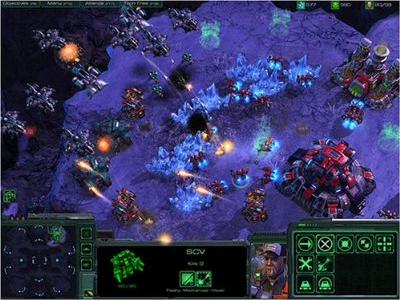
image I could not be more excited about the upcoming Starcraft 2. Announced in 2008, a whopping 10 years after the first Starcraft release, the news sent shockwaves through millions of Starcraft fans, myself included.

I’ve been watching and anxiously awaiting the release and, while the final release date is unknown at this point (I'll update the post when it is announced), I’ve assembled a list of current Starcraft 2 facts, summarized as bullet points.

But before I get into that, here’s the most important part you need to know to be able to get your hands on the game right after it’s released and play online ($49):

  • There will be 3 separate Starcraft 2 games (take a guess why 3 and not 5 or 2).
  • You will be able to play as any race online via battle.net using any of the 3 games in the trilogy. Good, I was wondering about that. Now that I think about it, being able to play only as Terran for months would be kind of weird.
  • The 1st game will center around Terrans and will contain a Terran campaign. It will be called Wings Of Liberty.
  • The 2nd game will center around the Zerg race. It will be called Heart Of The Swarm.
  • The 3rd and final game will center around the Protoss race. It will be called Legacy Of The Void.
  • (Those are some f***ing well named games. The best thing I could come up with was “Starcraft 2: The End Of Korean Economy”)
  • Each campaign will have 26-30 missions, rather than 8-10. This is done with the sole purpose of getting me fired for not coming to work for 3 weeks.
  • Again, the final release date is unknown at this point but there are rumors of an upcoming beta. You have to be a God level human to get your hands on it, so I don’t qualify [yet].
  • Some units are new, some are removed, and most of the others have modified abilities and stats.
  • Development of SC 2 was announced on May 19, 2007 under the codename Medusa but was originally started in 2003.
  • There are plans to include VOIP (in-game voice chat) into the game. Oh noes, did we not figure out how bad of an idea it is yet? Ever tried playing Counterstrike without turning off voice for 2 minutes? I dare you.

So, who else is psyched?

While we are all forced to twiddle our thumbs waiting for the release, the least I can do is provide these carefully picked HD videos to ease your misery:


[HD] StarCraft II Terrans: Wings of Liberty PC Games Gameplay - Battle Report #1 - Terran vs. Protoss

Get the Flash Player to see this player.

[HD] StarCraft 2 Gameplay - BlizzCon 2008

[HD] The Now Classic Huge Gameplay Demo From 2007

Get the Flash Player to see this player.

 
  • Share/Save/Bookmark